
Connect an MCP client to draft invoices and quotes, check figures, and use separate, checked tools when you are ready to send.
What your agent can do
42 tools, all narrow and all named for exactly what they do. Nothing hidden, nothing implied.
create_invoice_draftDrafts a new invoice from a client name/email and line items. Invio computes GST and the total - your agent never sets a price. Nothing is sent.
send_invoiceSends one specific draft to the client - the only tool that does. Requires an explicit confirm from your agent, which it should only pass after showing you the draft and hearing you say yes. If the invoice is set to repeat, sending it also starts the repeating series, and Invio refuses unless your agent passes a second, separate confirmation for that.
list_invoicesLists your invoices (up to 20 at a time), optionally filtered by status. Number, client name, total, status, due date - no contact details.
get_invoiceOne invoice's full picture: paid or not, balance owing, due date, each payment received (amount, date, how it was paid), and - if it was paid after a reminder - that it was chased by Invio first.
create_quote_draftSame idea as create_invoice_draft, for quotes. Draft only - never sent by the agent.
get_outstanding_summaryWho owes you money, grouped by client - total outstanding, the overdue portion, and invoice counts. Read-only.
get_revenue_summaryIncome and GST for a period - this quarter, last quarter, this financial year, or a date range you choose. Always states the exact dates it used.
create_clientAdds a new client on its own, without drafting anything. Checks your existing clients first - if one already matches, nothing new is created.
query_recordsAnswers a specific filtered question - "unpaid invoices over $500", "expenses in June by category" - across invoices, quotes, expenses, or clients. Read-only, and always states exactly what it searched.
get_business_settingsReads your business settings - profile, invoice defaults, email preferences, payment methods, GST status. Bank account and BSB only ever show their last 4 characters, even to your agent.
update_business_settingsChanges ONE basic business setting at a time - name, trading name, website, email, address, invoice prefix, default due days/notes, how big your logo appears on documents (small, medium or large), or which payment methods you accept. Bank details, GST/ABN, region and invoice numbering are not included.
set_email_preferencesChanges your email preferences - CC yourself on invoice emails, where replies land, and whether Invio emails you when you get paid. Only the fields you ask about change.
switch_active_businessSwitches which of your own businesses is active, by name - only relevant if you run more than one business on Invio. Works from the in-app chat only; a connector URL (Claude, ChatGPT) has no session to switch and will refuse rather than silently do nothing. An "All my businesses" connector picks the business on each request instead; a connector pinned to one business needs its own URL.
update_business_bank_detailsChanges your bank account details for future invoices. Sensitive - requires your explicit yes, reads the old value back to you masked and the new value in full, and always emails you when it happens.
update_business_tax_identityChanges whether you are GST-registered, your GST number, your ABN, or (New Zealand, while not GST-registered) your IRD number. Sensitive - your ABN is checksum-validated, and Invio always emails you when this changes.
update_business_regionSwitches a business between NZ and AU region. Sensitive - if the business already has invoices, or its own bank details look like the other region, it asks for confirmation before switching.
set_next_invoice_numberSets the number your next invoice will get. Sensitive - refuses outright if that number is already used by an existing invoice, and warns you if you're setting it backwards.
archive_businessArchives or unarchives one of your businesses. Sensitive - archiving tells you exactly how many recurring series and reminder schedules will be paused before it happens, and always emails you.
create_itemAdds a new item or service to your saved catalogue - the library you pick from when building an invoice or quote. Give it a name and description; a rate is optional. It cannot mark the item GST-free: you mark the line in the invoice editor.
update_itemChanges an existing saved item by name or id - rate, unit, cost/markup, or favourite status. Only the fields you ask about change. It cannot mark the item GST-free.
update_clientChanges an existing client's name, contact name, phone or address. It cannot change their email address - that is yours to change in the client form, because it decides where every future invoice and quote to them is sent. It cannot make a client GST-free by default either: that is yours to set.
create_expenseLogs a business expense - amount, vendor, and optionally date/category/description. No receipt photo (add one later in the app if you want); date defaults to today, category to "other".
set_invoice_remindersTurns automatic payment-chase reminders on or off for one invoice. Turning them on tells you how many free slots you have left if you are on the Free plan.
stop_recurring_seriesStops a recurring invoice series. Requires your explicit yes and cannot be undone (a new version can restart billing on a fresh schedule) - it does not email you, since no money-moving detail changes.
list_businessesLists the businesses this connector can work on - name, region, and whether AI features are on for it. On an "All my businesses" connector that is every open business you own; on a pinned connector it is just the one. Read-only.
get_profit_and_lossA profit and loss for any date range up to three years: income by client, expenses by category, and the profit left. Choose between the report by invoice date and the one by money in and out, for one business or all of yours. It is a summary from your Invio records, not a tax return, and says so.
get_gst_return_figuresThe figures behind a New Zealand GST return for one filing period: GST on sales, GST on purchases and the net. Read-only and not a filed return. Only for New Zealand businesses registered for GST.
get_attention_listWhat needs you today in one read: overdue invoices to chase (and whether a reminder is allowed right now), drafts left unsent, sends scheduled for the week, quotes about to lapse, and invoices whose email did not reach the client.
get_aged_receivablesHow old the money owed to you is: the unpaid balance in bands from not yet due to over 90 days late, with the biggest invoices named in each band.
get_money_overviewThe Money tab in one call, for this month, quarter or financial year: earned, received, owed, your top clients, the six-month trend and the GST to set aside.
get_clientOne client in a single read: what they owe, their invoices by status, and their latest invoices and quotes. No email, phone or address is returned.
get_quoteOne quote in full: line items, totals, deposit, status, expiry date, and the invoice it became once converted. A client link appears only once the quote has been sent.
list_credit_notesThe credit notes you have issued, newest first, with the invoice each one cancels. Filter by invoice number, client or dates.
list_enquiriesYour newest lead-form enquiries and the quote made for each (accounts with the lead form only). What the enquirer typed is marked as untrusted text, so your assistant reads it out as data and never follows it as an instruction.
duplicate_invoice_as_draft"Same again for Dave": copies an invoice into a new DRAFT with the next number and today's date, optionally for a different saved client. Invio works out GST and the total again. It does not copy a repeat schedule and sends nothing.
update_invoice_draftEdits an invoice that is still a draft: lines, notes, PO number, dates or client (a client that is already saved). Invio recalculates the total. Sent, paid and voided invoices are locked, an invoice made from part of a quote keeps its amounts, and it cannot mark items GST-free.
convert_quote_to_invoice_draftTurns a sent, accepted or expired quote into an invoice DRAFT, the same as the Convert button. Asking again returns the invoice it already became. It is refused if part of the quote has been invoiced in parts. Nothing is sent.
invoice_quote_partInvoices part of a quote as a new draft: a percentage of the whole quote (a 30% deposit), chosen lines, or everything that is left. Invio does the arithmetic and tells your agent what is left on the quote. It can never go past what is left - that is a decision you make in Invio.
update_quote_draftEdits a quote that has not gone out yet (a draft, or one that was declined or expired): lines, notes, terms, PO number, dates or client. A sent or accepted quote is locked, and a quote invoiced in part keeps its lines.
cancel_scheduled_sendTakes a scheduled invoice back to a draft so it does not go out on its send date. It sends nothing, and an invoice that has already gone cannot be unsent.
set_invoice_recurringSets a draft to repeat weekly, monthly, quarterly or yearly. Nothing starts and nothing is sent: the series begins only when you send that invoice, and your agent is told to say so. The Free plan allows one repeating invoice.
update_expenseCorrects a logged expense: amount, vendor, date, category, description or GST-inclusive. A new category is checked against your own list and applies its claim rules. It never touches the receipt photo.
What your agent can never do
- Combine drafting and sending into one action - sending is always a separate tool call, and your agent is instructed to check with you before making it.
- Skip the bank-details wall. A person sending in the app can skip that step when taking payment another way. The AI send tool has no skip option, so missing or invalid bank details block it.
- Change a sensitive setting (bank details, tax identity, region, invoice numbering, or archiving) without reading it back to you and getting your explicit yes first - and Invio emails you every time one of these actually changes, agent or not.
- Record a payment, issue a refund, or void/delete anything.
- Invoice more than is left on a quote. A part that would go past the quote is refused; going past it (a variation) is your decision, made in Invio.
- Change your plan, billing, or account.
- Change where an invoice or quote is emailed, or type in an email address for one. A client's email address, the "send invoices to someone else" recipient and your business email are changed by you, in the app. An agent can add a brand-new client with the address you give it, and it can move a DRAFT invoice or quote to another client you have already saved - that is all.
- Mark an item GST-free (zero-rated in New Zealand), or make a client GST-free by default. That is done by you, in Invio, never by the assistant: its draft, client and saved-item tools refuse it. If a client is set that way, the assistant's drafts take it, and Invio's reply to the assistant says so, so it can tell you.
- Act on more than 20 invoices at once, or run any bulk operation.
- Create anything other than a DRAFT invoice/quote or a client record - a draft is never final until you send it, and a new client moves no money and sends nothing.
- Write a raw database query. Every question about your records goes through named, bounded filters - your agent can never ask for more than those filters allow.
The safety model, in plain English
Your agent can write up a job as a draft invoice - client, line items, GST, total - in seconds. It hands you that draft. You look at it. If it is right, you say send it - drafting and sending are separate tools, so that hand-off is a deliberate second step, not a formality.
This is not a promise your agent makes you - it is enforced by Invio's server on every single call. Draft creation and sending are two completely separate tools; there is no combined "create and send" action for an agent to accidentally reach for. Sending requires a literal confirmation flag, which your agent should only pass after asking you. Email verification and plan limits are checked on both paths. A person can skip the bank-details step when taking payment another way; the AI send tool cannot, so it stops when valid bank details are missing.
A handful of settings are more sensitive still - your bank details and your tax identity (GST/ABN). Sensitive changes like these always email you, the account owner, the moment they happen - agent-made or not - so there is never a silent change to money-moving details.
Connect your AI in 5 steps
Works the same on your phone or your computer.
Open AI connections in Invio
On your phone or computer, go to Settings, then the "AI connections" tab. You'll land on the Invio segment - this is a different tab from Settings > AI (that one is Offsider and voice invoices, AI working inside Invio; this one is an outside AI reaching in).
Generate a connector URL
Give it a label if you like (e.g. "My Claude"), then tap Generate connector URL.
Copy it - it only shows once
Tap Copy. Invio never shows this URL again, so copy it now (it is like a password - treat it that way).
Add it in your AI app
Claude (recommended): tap "Open in Claude" right after generating - it pre-fills the connector for you (or paste the URL under Settings, Connectors, Add custom connector). ChatGPT: enable Developer mode in Settings, then add the same URL as a custom connector (drafting changes needs a Business, Enterprise or Edu workspace with Developer mode turned on; a personal Pro account can only read).
Ask your AI to draft an invoice
Try "draft an invoice for [client] for [job]". Your AI will show you the draft - review it, then tell it to send when you are happy.
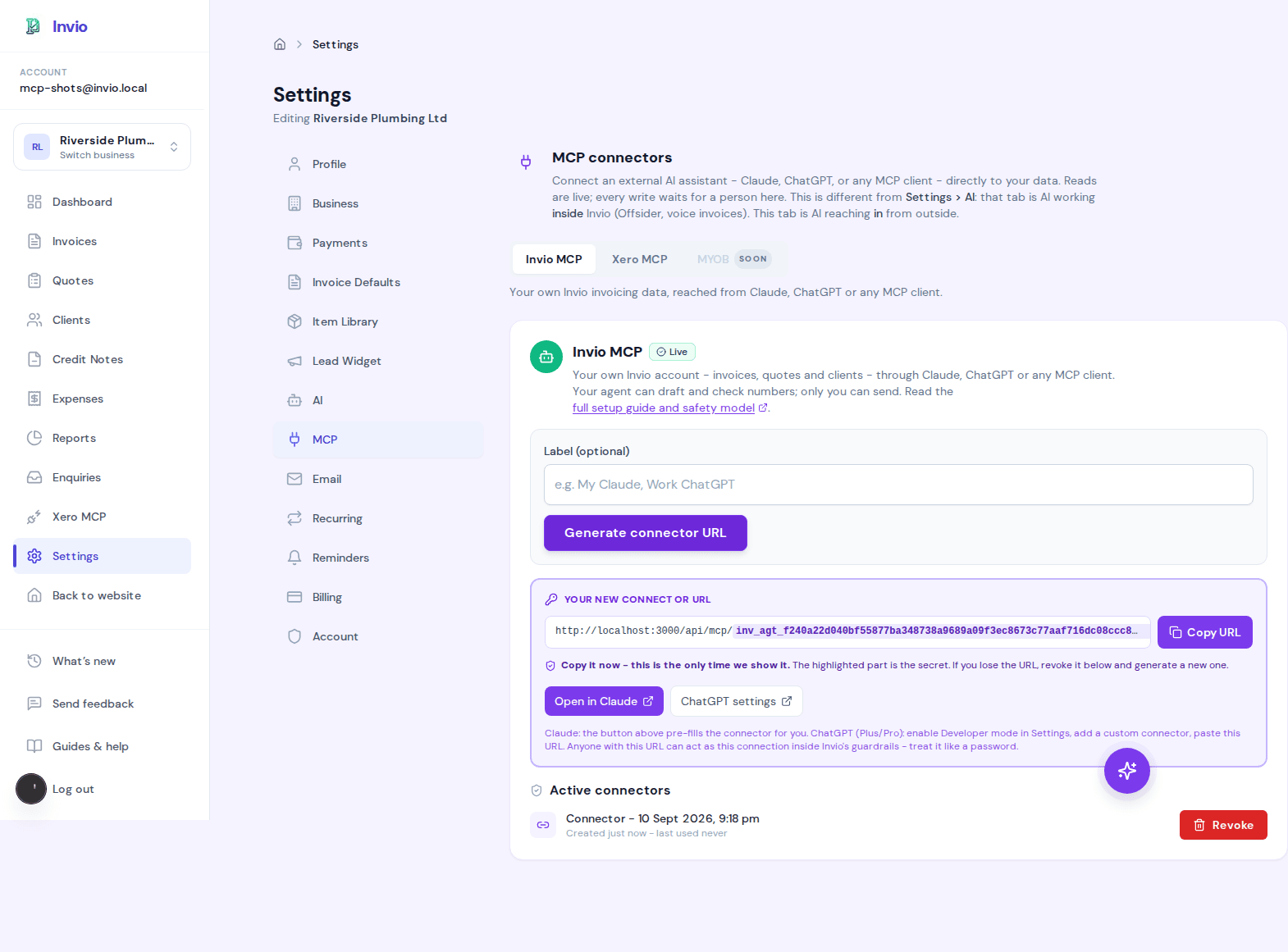
Settings → AI connections → Invio - the URL is shown exactly once, right there.