
Add Invio's enquiry form to your site or share its hosted link, then follow each lead through to a draft quote.
A form your customers actually trust
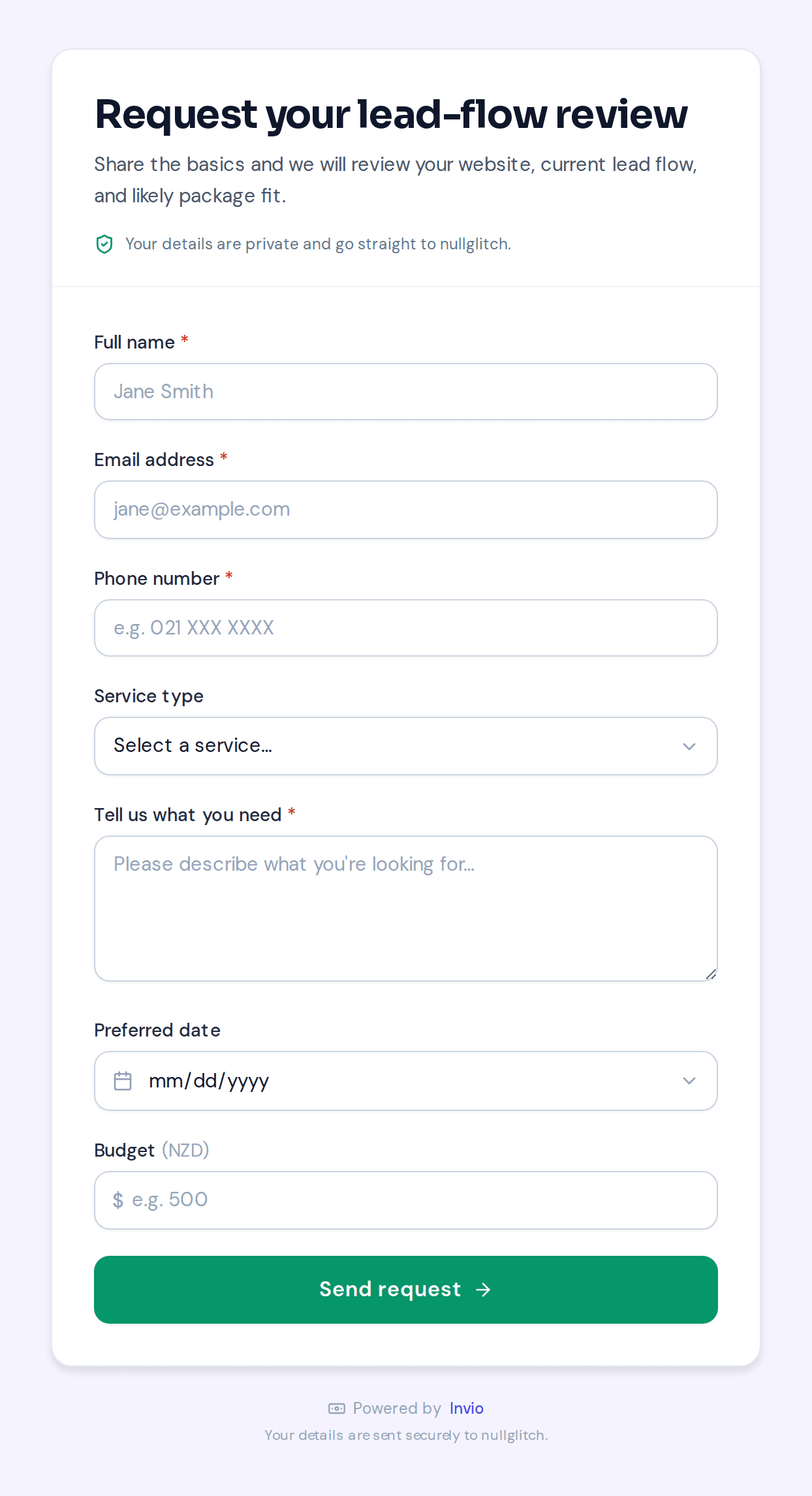
No bare Google-Form look. Your form carries a clear headline, a privacy reassurance line, and a dominant call-to-action - so more visitors finish it.
Clean, mobile-first design that matches a premium brand
A privacy line: "your details go straight to {your business}"
Optional fields: service type, preferred date, budget, photo upload
Embedded mode never shows Invio branding to your customers
Embed it, or just share a link
Use whichever fits. You can do both - the form and the hosted link always stay in sync.
Live on your site in under five minutes
Copy one line of code, paste it where you want the form, and you are done.
1
Copy your snippet
In Invio, open Settings → Lead Widget and copy the embed snippet.
Embed snippet
<script src="…/widget.js" data-form="your-business">
Copy2
Paste it on your page
Add an HTML / code block where you want the form, and paste.
HTML / Code block
<script src="…/widget.js" …>
3
Collect enquiries
The form goes live. Each submission becomes a draft quote in Invio.
Get a free quote
<script src="https://invio.co.nz/widget.js" data-form="your-business" data-accent="#2563eb" data-theme="light" data-radius="lg" data-font="system"></script>
Your real snippet uses your own form slug and picks up your saved theme settings (accent colour, mode, corner radius, font) automatically - copy the full snippet from Settings → Lead Widget. Australian accounts use the invio.com.au domain.
Where to paste it on your platform
The snippet is the same everywhere - only the place you paste it differs.
WordPress
- 1
Edit the page or post where you want the form.
- 2
Add a "Custom HTML" block.
- 3
Paste the embed snippet and update.
Squarespace
- 1
Edit the page and click an insert point.
- 2
Add a "Code" block.
- 3
Paste the snippet and save.
Wix
- 1
Click Add → Embed → Embed a Widget.
- 2
Choose "Embed Code" and open the editor.
- 3
Paste the snippet and apply.
Webflow
- 1
Drag an "Embed" element onto the page.
- 2
Open the code editor for that element.
- 3
Paste the snippet and publish.
Shopify
- 1
Edit the page in the online store editor.
- 2
Switch the content box to "Show HTML".
- 3
Paste the snippet and save.
Plain HTML
- 1
Open your page’s .html file.
- 2
Paste the snippet where the form should appear.
- 3
Upload the file to your host.
Share your form anywhere
Every form comes with a clean hosted link you can drop wherever your customers already find you.
https://invio.co.nz/q/your-business
Link in bio
QR code on flyers
Email signature
Text / WhatsApp
Social posts
Google Business
A smooth finish, automatically
Your customer sees a confirmation, then gets gently redirected - no dead-end page.
Embedded on your site
After a short thank-you, the page returns to your own website if you have one set, or the form simply closes - keeping your customer on your brand the whole time.
Hosted link
After the confirmation, visitors are sent to invio.co.nz - and you get the enquiry as a draft quote, plus an instant alert email.
Spam protection
Real enquiries only - spam stays out
The form is protected by several invisible layers, so you spend time on customers, not junk:
A hidden honeypot field that traps automated bots
A timing check that blocks instant, scripted submissions
Rate limiting so no one can flood you with requests
No CAPTCHA - real customers never see any friction
Make it look like your brand
Every business themes their own form. Changes are reflected instantly in the embed snippet.
Accent colour
Pick any hex value with the colour picker - buttons and highlights follow.
Theme mode
Light, Dark, or Auto (follows the visitor's system preference).
Corner radius
Small, Medium, Large, or Extra large - from sharp to very rounded.
Font
System, Sans-serif, Serif, or Monospace to match your site's typography.
Live preview in Settings
In Settings → Lead Widget, the Theme section shows a live preview that updates as you change each option. When you save, the embed snippet is automatically regenerated with the new data-accent, data-theme, data-radius, and data-font attributes baked in - no need to re-paste the snippet.
Manage installations
See where your form is installed
Settings → Lead Widget shows an Active installations panel - a list of every site your embedded form has received at least one submission from, detected automatically from where enquiries came from. For each site you can see the lead count and when it was last active.
No manual setup - sites appear the moment their first enquiry arrives
Lead count per domain so you can see which installs are performing
Last-seen timestamp to spot installs that have gone quiet